Difference between revisions of "Add and remove pages"
Jump to navigation
Jump to search
| Line 4: | Line 4: | ||
* Click on edit and a new window will appear | * Click on edit and a new window will appear | ||
* At the bottom click on ''New page'' | * At the bottom click on ''New page'' | ||
| + | <gallery> | ||
| + | Add-pages-part2.png|Caption1 | ||
| + | |||
| + | </gallery> | ||
| + | |||
* You can simply click on the question mark Icon at the bottom right corner which will give you a visual tutorial on how to manage the backend. | * You can simply click on the question mark Icon at the bottom right corner which will give you a visual tutorial on how to manage the backend. | ||
'''Removing Pages''' | '''Removing Pages''' | ||
Revision as of 14:57, 13 May 2019
Adding Pages
- To add a new page simply clink on the drop down arrow next to where it says home.
- Click on edit and a new window will appear
- At the bottom click on New page
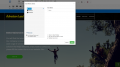
Caption1

- You can simply click on the question mark Icon at the bottom right corner which will give you a visual tutorial on how to manage the backend.
Removing Pages
- To remove pages you simply need to click on the drop next to where it says home then click on the X next to the page you want to remove.
