Difference between revisions of "Huawei AX3"
Jump to navigation
Jump to search
(→Setup Wizard) |
(→Setup Wizard) |
||
| Line 17: | Line 17: | ||
# You have now completed the setup wizard. | # You have now completed the setup wizard. | ||
| − | <gallery mode="slideshow" style="vertical-align:top"> | + | <gallery mode="slideshow" style="vertical-align:top; width: 50%; height: 650px;"> |
file:Ax3_Welcome_Screen_.jpg|Setup wizard welcome screen | file:Ax3_Welcome_Screen_.jpg|Setup wizard welcome screen | ||
file:Ax3_Wizard_step_1.jpg|Step 1 | file:Ax3_Wizard_step_1.jpg|Step 1 | ||
Revision as of 14:07, 13 June 2024

Reconfiguring your router
- Open your browser (Firefox, Chrome, Edge, Safari, etc.) and browse to the following address: https://192.168.3.1/
- Log in with the router password printed on the included datasheet. If your router has not been pre-configured you will need to complete the setup wizard.
Setup Wizard
If your router has been pre-configured you will not need to follow these steps.
To start the connection wizard, accept the terms and conditions.
- Check that the router's WAN port is connected to the ONT. If your fibre line has not been activated yet, and you receive the following error, click `Connect later`
- For Openserve or Vodacom connections, select `PPPoE`. Enter the PPPoE username and password from the datasheet included with your router. Click `Next`. For all other fibre connections, select `DHCP` and click `Next`.
- If any of your devices aren't compatible with WiFi6 6, enable the backup WIFi 5 network. Click `Next`. Enter a name for your WiFi network, and create a WiFi password and a strong router login password. The router login password is only for accessing this configuration page, but you may need it in future, so take note of it.
- You have now completed the setup wizard.
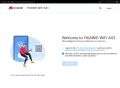
Setup wizard welcome screen
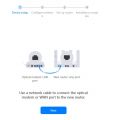
Step 1
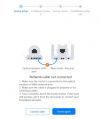
Step 1 Error
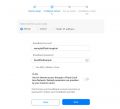
Step 2: Select PPPoE for a Vodacom or Openserve connection


