Difference between revisions of "Creating a new email address"
Jump to navigation
Jump to search

| Line 1: | Line 1: | ||
[[file:Mydotmenu.JPG|frame|left|Fig. 1]] | [[file:Mydotmenu.JPG|frame|left|Fig. 1]] | ||
| + | [[file:Newaddress.JPG|frame|left|120px|Creating email settings]] | ||
Log into [https://my.imaginet.co.za/ MyDot] and click on '''Email''' in the menu on the left (Fig. 1). | Log into [https://my.imaginet.co.za/ MyDot] and click on '''Email''' in the menu on the left (Fig. 1). | ||
| Line 16: | Line 17: | ||
If you experience any trouble, please give us a call on 086-111-1101 for assistance. | If you experience any trouble, please give us a call on 086-111-1101 for assistance. | ||
| − | |||
Revision as of 15:15, 24 May 2023

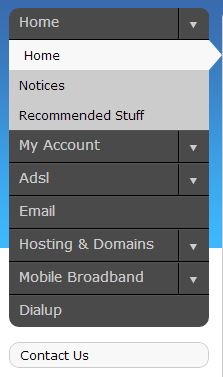
Fig. 1

Creating email settings
Log into MyDot and click on Email in the menu on the left (Fig. 1).
- You will be presented with a list of domains.
- Click the Add button at the top right.
- Select the domain @ which you would like to create a new email address.
- Enter the username - the part of the address before the @.
- Click Accept.
- You will need to enter your chosen password twice. Ensure that it's the same both times.
- Click Add.
And that's it! You have created a new email address.
To set up your new address in your mail client, see Mail client configuration
If you experience any trouble, please give us a call on 086-111-1101 for assistance.
