Difference between revisions of "Changing your email password"
Jump to navigation
Jump to search
| Line 6: | Line 6: | ||
* Next to '''Passwords''', click '''Edit'''. <br /> | * Next to '''Passwords''', click '''Edit'''. <br /> | ||
* Enter your password into both fields. Ensure that it's the same both times. Click '''Save'''. | * Enter your password into both fields. Ensure that it's the same both times. Click '''Save'''. | ||
| + | |||
| + | * If you experience any trouble, please give us a call on 086-111-1101 for assistance. | ||
Revision as of 10:57, 17 December 2021
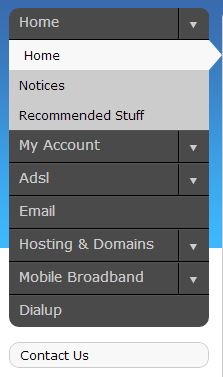
Log into http://my.imaginet.co.za/ and click on Email in the menu on the left (Fig. 1).

Fig. 1
- You will be presented with a list of domains.
- Locate your email address by scrolling to the correct domain and clicking View.
- Scroll to the address you wish to modify, and click Edit.
- Next to Passwords, click Edit.
- Enter your password into both fields. Ensure that it's the same both times. Click Save.
- If you experience any trouble, please give us a call on 086-111-1101 for assistance.
